Himachal Pradesh Transport Stage Carriage Permit
Organisation : Department of Transport Himachal Pradesh
Facility Name : Stage Carriage Permit
Applicable State : Himachal Pradesh
Website : https://online.himachaltransport.hp.gov.in/
| Want to ask a question / comment on this post? Go to bottom of this page. |
|---|
What is Stage Carriage Permit?
A Stage Carriage Permit is a mandatory government authorization for public transport buses (like city buses) to operate on a specific, fixed route, picking up and dropping passengers at designated stops for separate fares, regulated under laws like India’s Motor Vehicles Act, ensuring regular, scheduled service for the public. It defines the route, timings, and passenger capacity, allowing vehicles like regular city buses to run public transport services.
Related / Similar Facility : Himachal Pradesh Transport Contract Carriage Permit

How To Apply For Stage Carriage Permit in Himachal?
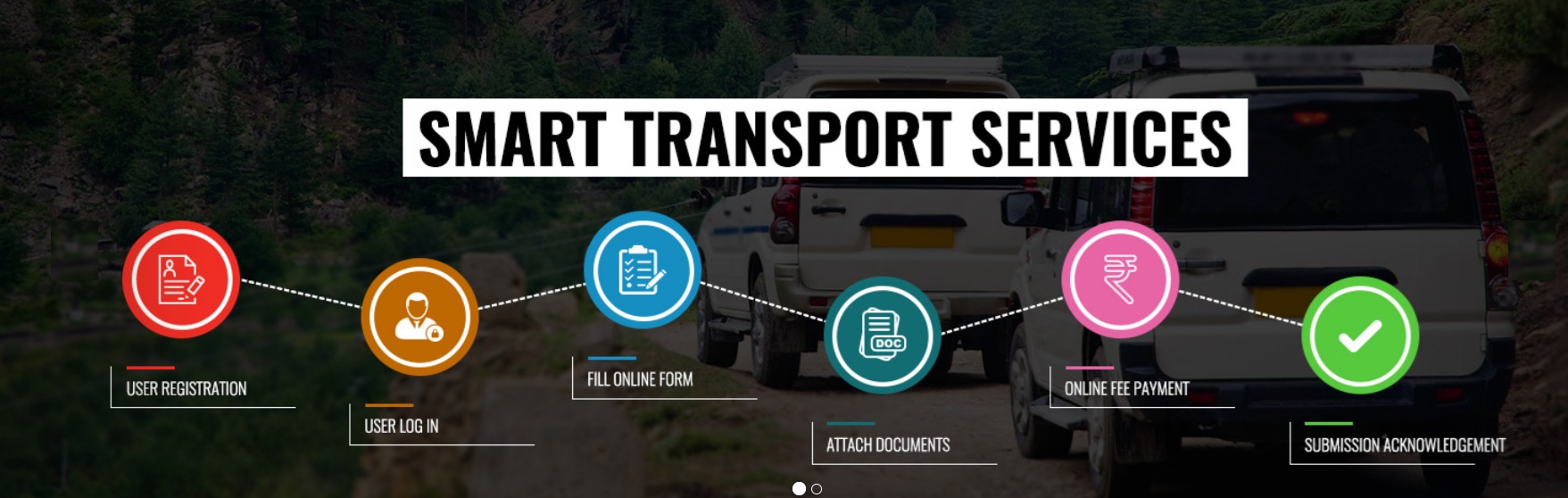
To apply for Stage Carriage Permit in Himachal Pradesh, Follow the below steps
Steps:
Public Login:
For login or to sign-up to access HPDT services online, click on public login button on homepage.
New User:
If user is new,then click on ‘For New User, Create an Account’ button.
User Registration:
Fill in all your details in the form and click on Registration button.
O.T.P Verification:
User will receive an OTP on the mobile number entered while registering to the portal to continue the process.Enter the OTP in the input field.
Resend OTP:
If user doesn’t receive any OTP,they can click to the ‘Resend OTP’ Button to get another OTP on mobile number.
Password Reset/Forgot Password:
To reset/change the password, user will enter data to the input fields
** Email of the registered user
** Password sent to the user on registered email to HPDT
** Input new password
** Re-enter the new password for the confirmation
Login:
Users can login to HPDT Portal using authentic login details like Email & Password or using Phone numbe rin case if user is trying to login with phone number, user will receive an OTP on registered mobile number.
To login via email follow these steps:
** Click on Public Login button on website home page.
** Enter registered E-mail and Password.
** Click on Login button.
For login via phone number, follow these steps:
** Enter registered mobile number.
** Click on Continue button.
** Enter the OTP received on registered mobile number.
Dashboard:
When user logs into the portal, user lands on dashboard where user can view and access the features of the web application and apply for the online services. User can view the status of their application under Activity tab in dashboard page.
Change Password:
User can change their password by clicking on profile name button on top right corner and then clicking on Change Password button.
** User must enter old password.
** User must enter new password and confirm password.
** On click to the submit button.
My Applications:
Click on My applications on left side drawer to view the status/summary of the applications
** Total applications submitted
** Approved applications
** Pending applications
Services:
** On clicking services menu, user can get the list of available services. Click on stage carriage for availing stage carriage services.
** On clicking services menu,Service menu will auto-populate, and user can view available services on the applicant’s portal.
** Click on Services menu and then select stage carriage Permits sub menu. User will be navigated to the stage carriage page.
Apply for Route Permit:
User can view and apply for the permit on new published routed by the department by clicking on Apply for route permit button (Top right corner) & user will be directed to application form to apply for permit on new routes.
Step 1:
User must have to fill all the input fields to apply for Route Permit and follow application form in steps.
In Step 1 and enter your basic details like:
** User must read checklist carefully and fill personal details with genuine data and click on ‘Save & Continue’ button.
** On clicking ‘Save & Continue’ button, user will receive a system generated application number, to use it for further reference.
Step 2:
** Select District and RTA from drop down menu option to view the list of routes.
** On clicking Get Routes, list of routes will be displayed to the user, from which user can select a route and click to save and continue.
Step 3:
** User will fill the details of existing stage carriage and contract carriage permit details. Multiple permits can be entered here by entering number of permits and then their details.
** User must upload all required documents(Aadhar Card, Scanned Un-Employment certificate, Scanned
** Certificate of Bonafide Himachal, Ex-Service Man Certificate, Co-operative Society certificate) in the form of PDF/Image & user must check all the declarations check boxes to continue to next step on click to save & continue button.
Step 4:
** After saving step 3, user will be navigated to step 4 where user can take a preview of the application and make online payment for their route permit application.
** On clicking preview button, user can see the information that they have filled in different steps of application form.
** On this page user must select the Payment Type, Bank and enter the Code viewable to user for the verification purpose and can click to ‘Make Payment’ option to make online payments to the HPDT portal.
Step 5:
After online payment process is completed, user’s application with the system generated application number will be forwarded to the RTO for the scrutiny.
Select Application:
User can select type of permit that they wish to apply from Select Application menu drop down field
Contact For Permit
For any permit related queries kindly contact on helpline number 0177-2654185 (10 A.M. TO 5 P.M.)