Bhu Bharati Telangana Registration of Exchange
Organisation : Telangana Revenue Department
Facility Name : Registration of Exchange
Applicable States/UTs : Telangana
Website : https://bhubharati.telangana.gov.in/homePage
| Want to ask a question / comment on this post? Go to bottom of this page. |
|---|
How To Apply For Registration of Exchange in Telangana?
Registration of land exchanges in Telangana is managed through the Bhu Bharati portal (https://bhubharati.telangana.gov.in/), which replaced Dharani for comprehensive land management. Users must log in, submit exchange details, complete data entry, pay fees, and book a slot for the registration, facilitating official mutation and recording of rights.
Related / Similar Facility : How To Apply For Khata Merging in Telangana?

Login
1) Visit Bhu Bharati (https://bhubharati.telangana.gov.in/) portal and click on the Login button to avail any service.
2) If not registered with Bhu Bharati, click on the Signup to register into the portal (check user registration manual if required).
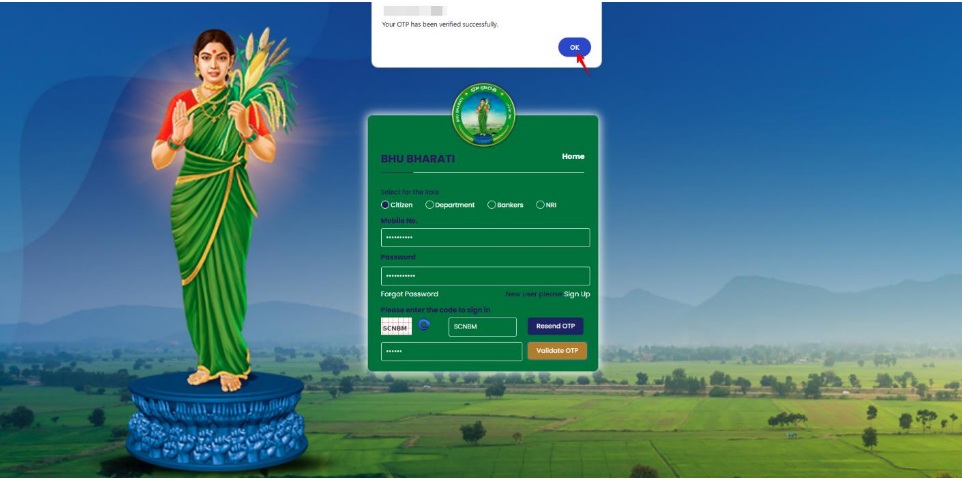
3) If already registered with Bhu Bharati, login to the portal by entering the mobile number, password, captcha, and click on the Get OTP button.
4) OTP has been successfully sent to the registered mobile number. Click on the OK button.
5) Enter OTP and click on the Validate OTP button.
6) OTP has been verified successfully. Click on the OTP button.
7) Citizen Dashboard is now open for using any service.
Registration of Exchange
1. To avail the Registration for exchange service, hover over Registration Modules and click on it.
2. Choose Registration of Exchange.
3. You can check all the citizen side flows involved in the application and click on the Proceed button to move further into the application.
4. Select the Nature of Deed, Nature of Sub Deed, enter PPB (Passbook) Number, and click on the Fetch button.
5. The property details populate. Select the checkbox corresponding to the extent of land. Enter the transacted extent of land and consideration value. Click on the Proceed button.
6. Enter boundary details and click on the Proceed button.
7. Property schedule summary will be displayed. To add exchangee click on Add Exchangee button.
8. Enter Passbook Number and click on the Fetch button.
9. The property details populate. Select the checkbox corresponding to the extent of land. Enter the transacted extent of land and consideration value. Click on the Proceed button.
10. Enter boundary details and click on the Proceed button.
11. Click on Continue button.
12. Add Exchanger’s Personal and Communication details.
13. Exchanger’s Family member details populate. You can add more family members by clicking on the Add More button. Click on Save and Continue.
14. Add Exchangee’s Personal and Communication details.
15. Add Exchangee’s Family Member’s details. You can add more family members by clicking on the Add More button. Click on Save and Continue.
16. If you want to add consenting party details, choose ‘Yes’ radio button for Do you want to add consenting party details? Else select ‘No’ and you will be redirected to the next step.
17. If you want to add payments of consideration details, choose ‘Yes’ radio button for Do you want to details of payments of consideration? Else select ‘No’ and you will be redirected to the next step.
18. Click on the Transaction Summary Receipt button.
19. Transaction summary receipt is downloaded. Choose Yes or No radio button for Have you verified information present in Transaction Summary Receipt? Click on the Proceed for Payment button.
Payment
20. Payment can be made by either Exchanger or Exchangee. By default, Exchangee is selected. Click on the Generate Challan button.
21. Check the checkbox for accepting terms and conditions and click on the Proceed button.
22. You will be redirected to the payment gateway and pay the fee.
Generate Document
23. Go to the Dashboard.
24. Click on the Generate Document button for that application.
25. Click on the Proceed for Slot Booking button. You can download eChallan and Transaction Summary receipts and undertaking from Transferer and Transfere from here.
Slot Booking
26. Select a date and time for slot booking. Click on Book Slot button.
27. Click on the Submit button.
28. Confirm the slot booking date and time by clicking on the OK button.
29. Slot is booked. Click on the Slot Receipt button to download the receipt. The application is forwarded to the Operator for capturing of photo and biometrics. Visit concerned Tahsildar office for further process on the date of slot booked.