How To Cancel Order On Delhivery One?
Organisation : Delhivery One
Facility Name : Cancel Order
Applicable State/UT : All India
Website : https://help.delhivery.com/
| Want to ask a question / comment on this post? Go to bottom of this page. |
|---|
How To Cancel Order On Delhivery One?
You can cancel a Sale order based on the below-mentioned scenarios. Then, depending on the shipment’s lifecycle, you get the Freight Amount refund in your Wallet or charged for an RTO (Return to Origin) flow.
Related / Similar Facility : How To Track Delhivery One Order Status?
|
Order Status
Sponsored Links:
|
Can I cancel the Order?
|
Will I get refund for Freight Amount?
|
What Should I do next?
|
|---|---|---|---|
| Pending | Yes | Not Applicable | – |
| Ready to Ship | Yes | Immediate Refund | – |
| Ready for Pickup | Yes | Immediate Refund | – |
| In Transit | Yes | No Refund | You will be charged based on RTO movement |
| Out for Delivery | No | Not Applicable | You can ask the Consignee to return during Delivery and will be treated as a RTO movement |
| Delivered | No | Not Applicable | You can raise a Reverse Pickup request i.e. Customer Return |
Steps To Cancel A Sale Order:
** Navigate to: Main Menu > Orders > Forward Order
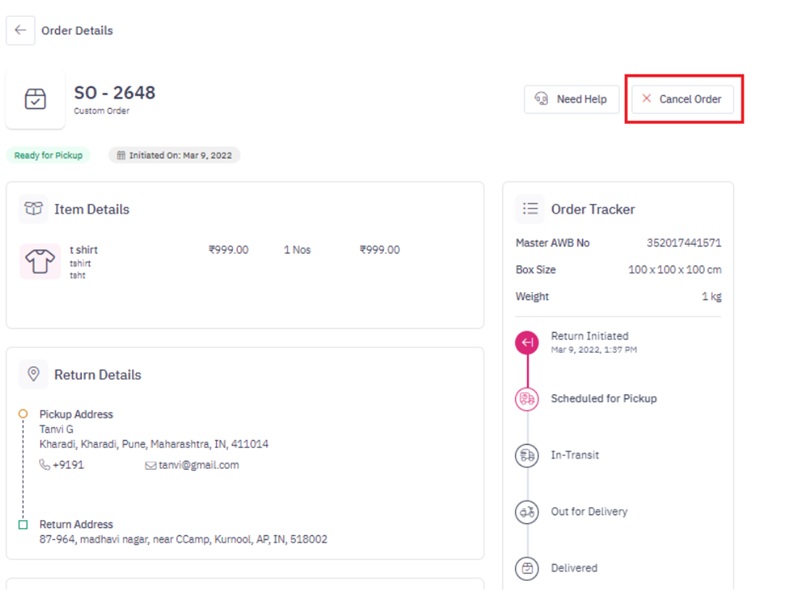
** Open the Order you want to cancel and click on “Cancel Order” on the Order details page
How To Cancel Bulk Orders On Delhivery One?
1. Cancelling orders in pending stage:
** Pending orders are newly created but not yet manifested.
** Navigate to: Main Menu > Orders > Forward Order > Pending
** Select the order(s) you want to cancel and click on “Cancel Order.”
2. Cancelling orders in ready to ship stage:
** Ready to Ship orders are manifested and AWB number is assigned but a Pickup Request is not yet created.
** Navigate to: Main Menu > Orders > Forward Order > Ready to Ship
** Select the order(s) you want to cancel and click on “Cancel Order.”
3. Cancelling orders in ready for pickup stage:
** Ready for Pickup orders are manifested, AWB number is assigned and a Pickup Request is created but Physical pickup is still pending.
** Navigate to: Main Menu > Orders > Forward Order > Ready for Pickup
** Select the order(s) you want to cancel and click on “Cancel Order.”
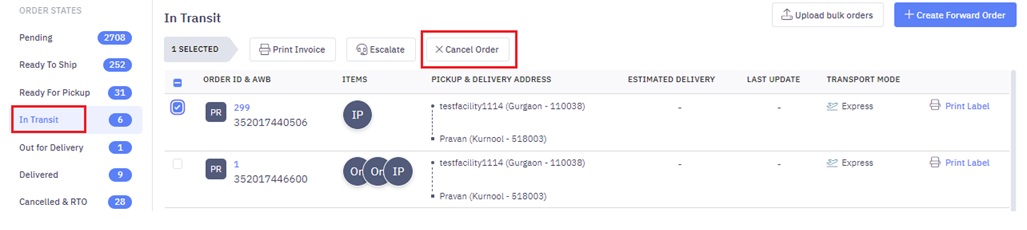
4. Cancelling orders in-transit stage:
** In Transit orders are en route to Consignee. However, if these orders are not yet shipped from the facility nearest to the Consignee, you can call back such orders.
** Navigate to: Main Menu > Orders > Forward Order > In Transit
** Select the order(s) you want to cancel and click on “Cancel Order.”
How To Create, Change & Cancel a Pickup Request?
There are two ways to create pickup requests from the Delhivery One platform. Lets learn both the ways –
** First Method to create pickup request
** Navigate – Main Menu > Orders > Forward Orders > Ready to Ship
** Select shipment(s) and click Add Pickup
** If there is a pickup request already scheduled for the day, then you will get an option to add the shipments to the existing pickup request. To add, Click on Add to Pickup.
** If you wish to create a new pickup request, then click on Create New Pickup .
** Select the pickup location, pickup date, preferred pickup slot and then click on Add to Pickup.
** Preferred Pickup Slot for your Pickup Requests: Your preferred pickup slot will be pre-filled from what you have assigned to your Pickup Location. In case no slot is assigned, you can select the preferred pickup slot here and save it for future pickups.
** Now, print & paste the shipping labels on the manifested shipments and keep them ready for pickup.
wants to return and cancel the order which was delivered on yesterday
wants to cancel the order as it is diifers from website